More and more people now ask ChatGPT to suggest a service, compare companies or find a local business before they ever open Google. Until recently, a business had no direct way to tell ChatGPT who it is. That has changed with ChatGPT Business Hub, a new dashboard from OpenAI that lets eligible companies claim, verify and manage their own profile inside ChatGPT.
In this guide we explain what ChatGPT Business Hub is, who can use it, how to add your business to ChatGPT step by step, how ChatGPT business verification works, and what to realistically expect afterwards.
ChatGPT Business Hub is a management dashboard for business owners and authorized representatives. Think of it as the place where you tell ChatGPT, in your own words, what your company does.
OpenAI introduced it because ChatGPT is used by roughly 1.2 billion people every week, and many of them use it to choose products and services. Before Business Hub, ChatGPT learned about a company mostly from the open web: websites, directories, reviews, articles and forums. Now a verified business can also supply its own details.
Inside Business Hub, a verified business can:
The launch also includes a Business Agent that answers customer questions using a company’s own information. At the moment, OpenAI is rolling that out gradually and mainly for online businesses, so this guide focuses on the profile itself.
The names are confusing, so here is the difference.
The ChatGPT business profile works in a similar spirit to a Google Business Profile, but it lives inside AI answers instead of a search results page. It is not a replacement. Keeping both accurate is the safest approach.
The feature is in beta, so availability depends on your business type and location. In general, you must be the owner or someone authorized to represent the company.
According to OpenAI’s current setup guidance, physical stores and restaurants can claim an existing listing in the United States. The option to add a brand-new business is directed at eligible online businesses, such as software companies, service providers and e-commerce stores. That makes it especially relevant for website-based companies anywhere in the world, though you should check what Business Hub offers for your own account and country.
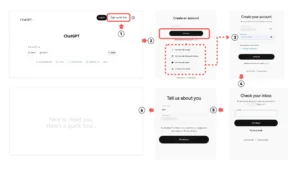
Here is the practical flow for ChatGPT Business Hub registration. Screens and wording may change while the product is in beta.
Sign in to ChatGPT, open the Business Hub from the sidebar and search for your company by name.
If your business already appears, you can start a claim. If only similarly named companies show up, do not claim someone else’s listing. Choose the option to add your own business instead, if it is available to you.
Business Hub asks whether customers find you at a physical location or through a website. Online companies should choose the website option.
Copy the URL directly from your browser so there are no typing errors. Use the same main domain your customers know.
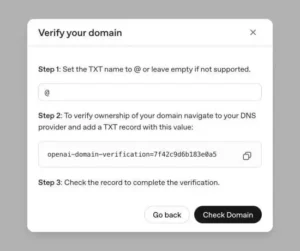
Business Hub offers the verification methods available for your business. These can include a business phone number (by text message or automated call), a business email address, a DNS TXT record for your domain, or a Shopify connection.
For the domain method, ChatGPT gives you a record type, name and value. Add these exactly as shown in your domain’s DNS settings. If your developer or hosting provider manages the domain, send them the details. DNS changes can take some time to become active, so return to ChatGPT afterwards and confirm.
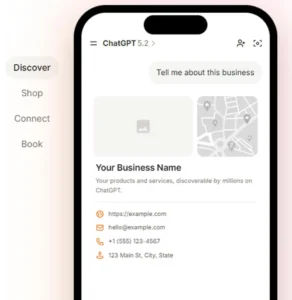
Pick the category that best matches your business. Write a clear, honest description of what you do and who you serve, consistent with your website. Avoid promotional language that your site cannot back up.
Phone and email are optional, but accurate contact details help. If you are a service company with no physical delivery or returns, choose the option that matches reality.
Your profile will first appear as a draft. Review every field, then proceed to identity verification and wait for approval. You can return later to check the status.
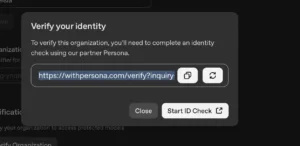
Claiming a business is not the same as being fully verified. To publish changes, use a product feed, see statistics or create an agent, you also need to confirm your identity. OpenAI uses a third-party service called Persona for this step. You may be asked for an identity document, your company’s registration details and proof that you are authorized to act for the business. A verified badge appears only after approval.
Before you start, keep these points in mind:
Once you are approved, these are the main ChatGPT Business Hub features to explore:
After the claim and identity checks are approved, the Insights section reports activity for the last 28 days. It currently focuses on three things:
An empty number does not always mean zero. Data may still be collecting, or reporting thresholds may not have been reached yet. Treat the first few weeks as a baseline rather than a verdict.
No, and it is important to be honest about this. OpenAI states that claiming your business does not guarantee better placement or more sales. ChatGPT continues to form its own recommendations and may draw on many other sources.
A profile helps in one specific way: it gives ChatGPT correct, first-party information about you. Whether your business is recommended still depends on how clear, trustworthy and consistent your overall online presence is.
Strong ChatGPT business visibility comes from the same fundamentals that support good SEO, with an added focus on clarity for AI systems:
A ChatGPT business profile works best when it points to a website that is clear, fast and well optimized. Aayan Infotech works across website development, app development and digital marketing. If you want help preparing your website content, structure and SEO so your business is easier to find on Google and AI platforms alike, our team would be glad to talk.